03. Registering a Trainingportal Offline Site
people found this article helpful
How to Register a Vessel
This guide explains how to create an organisational unit, add a vessel registration, and complete registration on the TPOS site.
Step 1: Add an Organisational Unit
To create an offline site, first create an organisational unit to store the users who will log in to that remote site.
On the Users tab, select Organisational Structure from the left-hand side
Create the vessel organisational unit under the correct vessel type or parent organisational unit.
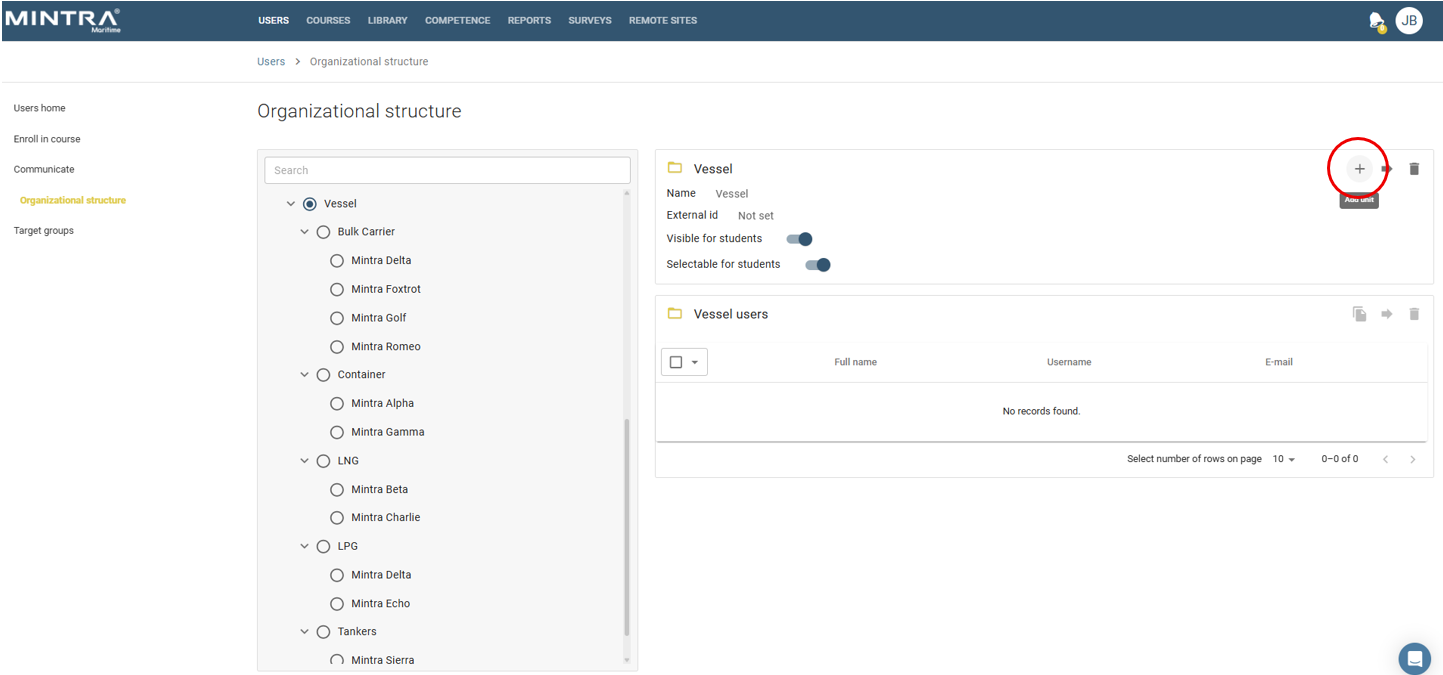
Select Add Unit. When prompted, enter the vessel name and external ID.
The external ID can be used for the vessel’s IMO number. This may vary depending on the integration setup.
After entering the required information, save the organisational unit.
The organisational unit is now created.
Step 2: Add or Create a Registration
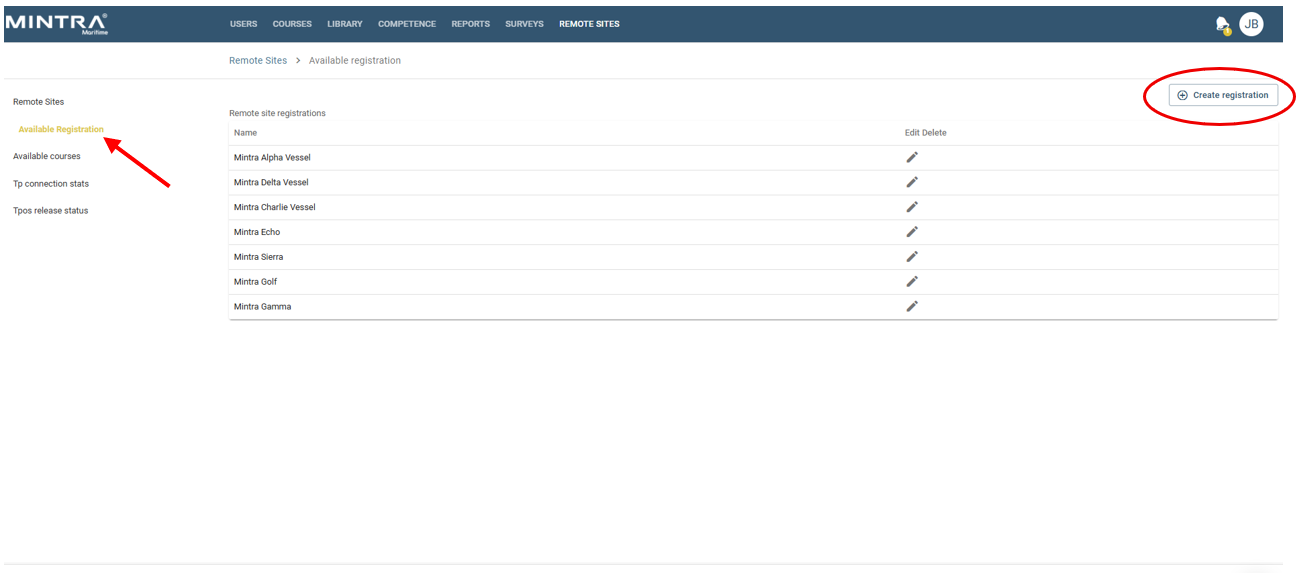
After creating the organisational unit, create a new TPOS registration from the Remote Sites tab.
Under Available Registrations, select Create Registration. When prompted, enter the vessel information.
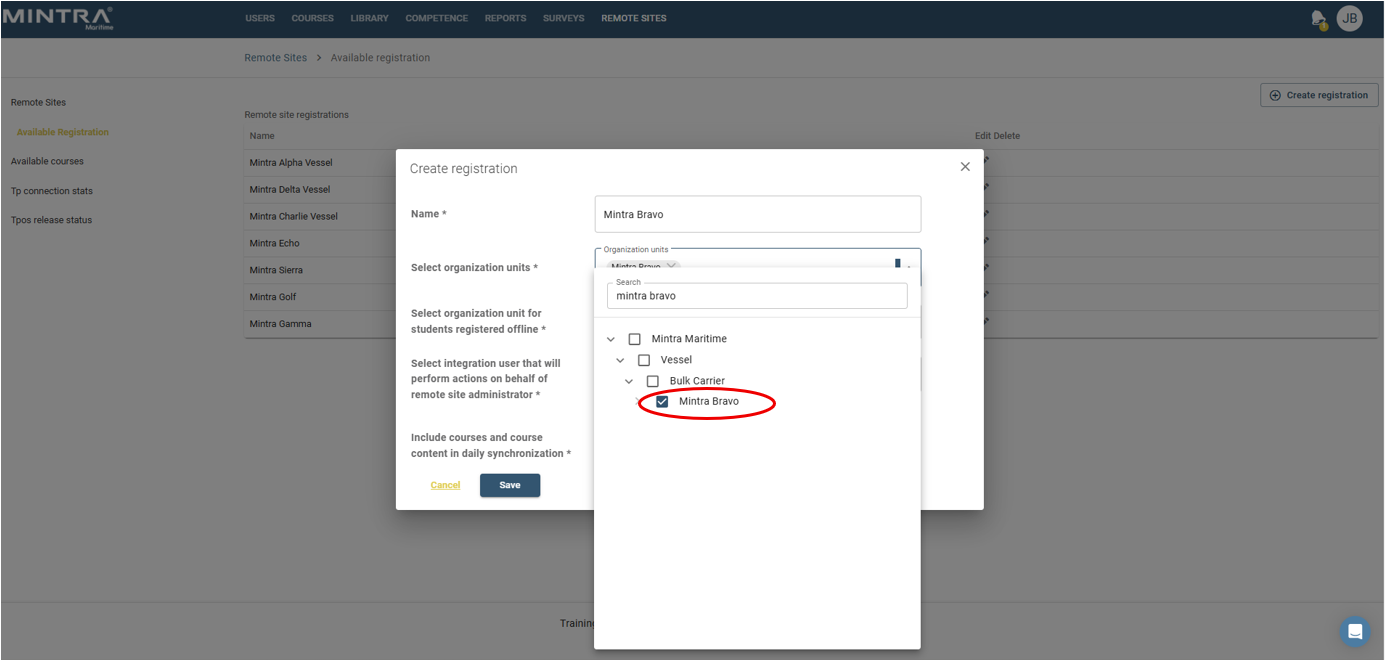
Use the dropdown menus or search fields to select the correct organisational unit for the vessel in both required fields.
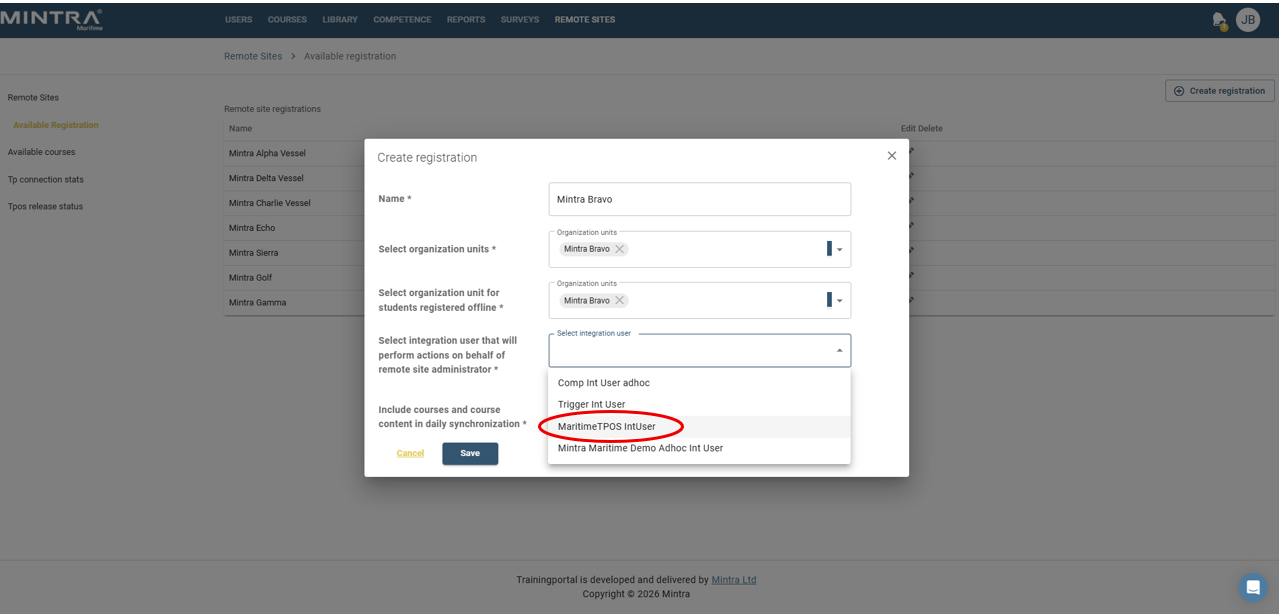
Select the correct integration user from the Integration User dropdown menu.
At the bottom of the registration page, choose whether courses and course content should be included in the daily synchronisation. Select Yes to include courses and course content in the daily synchronisation. Select No if course delivery will be handled through a course bundle; support@mintra.com can assist with this process.
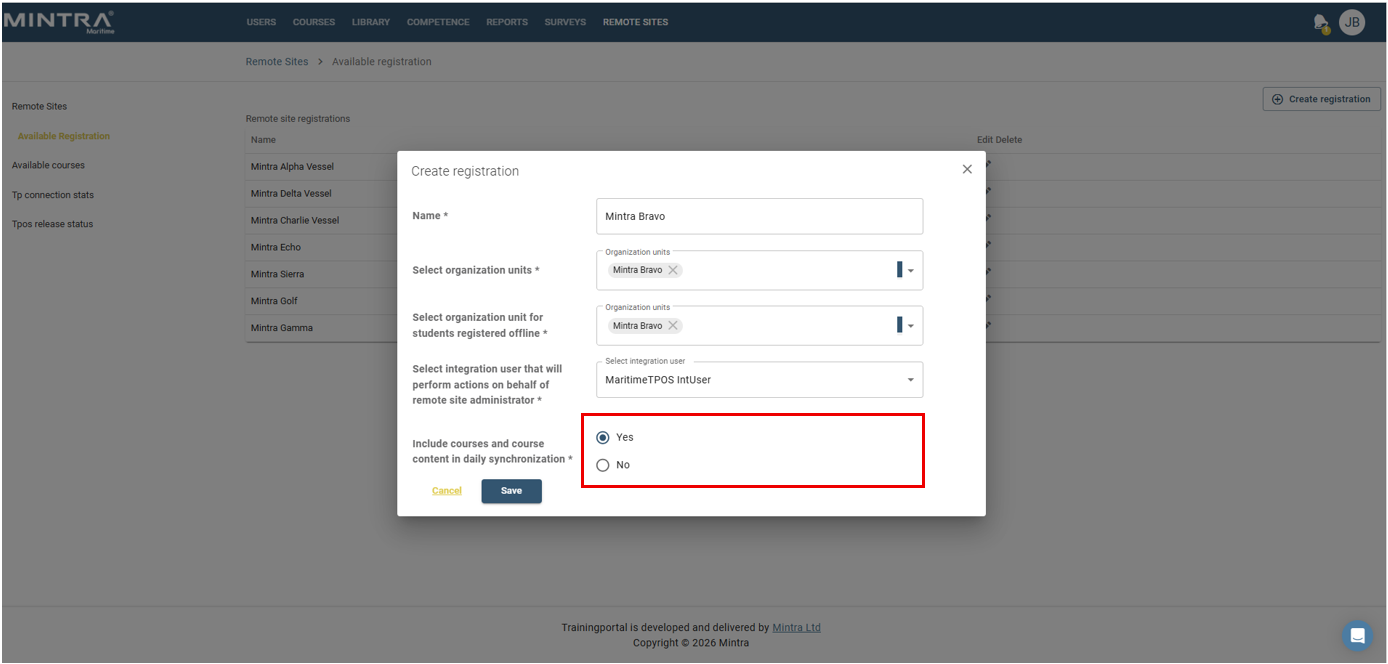
Confirm that the new registration appears on the Registrations tab.
Step 3: Register the TPOS Site
On the PC or server where TPOS is installed, open the registration page at PCname:8081/ui/public/tpos/remote-site and enter the required details.
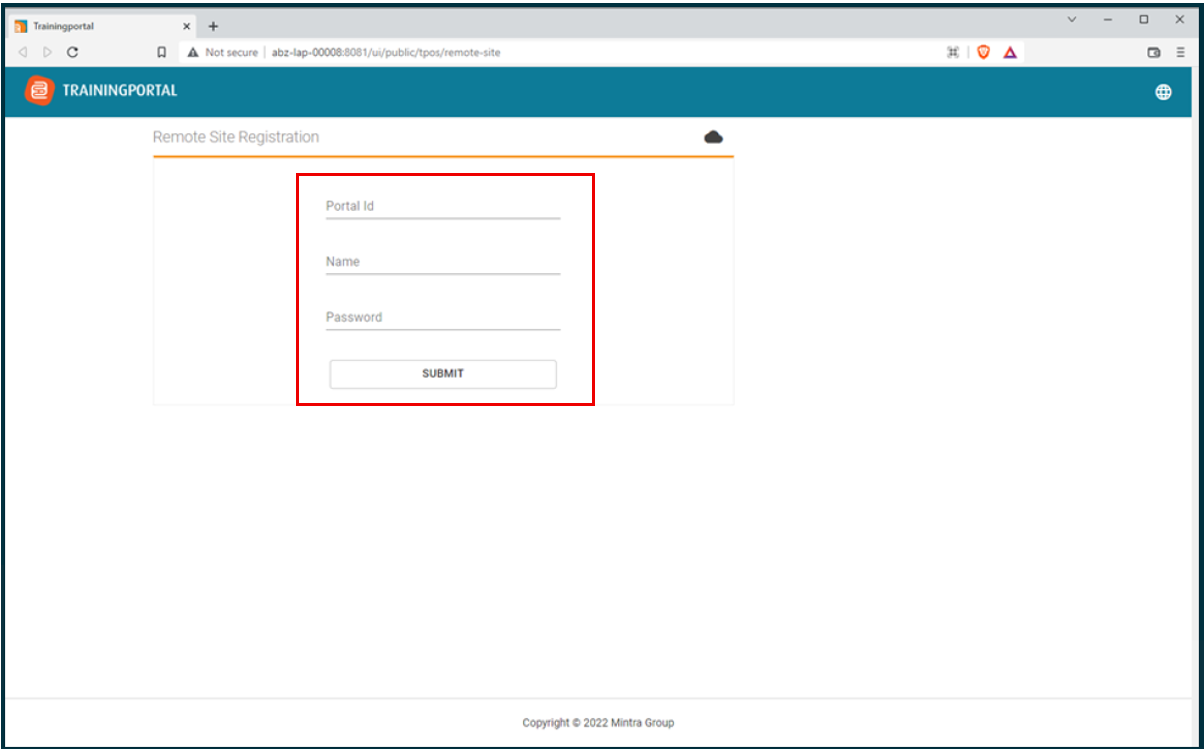
Portal ID:
Remote Site Name:
Password:
If you need these details, contact support@mintra.com for assistance.