06. How to Remove Seats
people found this article helpful
Seats can be removed from users under certain conditions:
-
If the user has not started any course activity, the seat can be removed immediately.
-
If the user has already started a course, the seat can be removed 6 months after activity began.
To remove a seat:
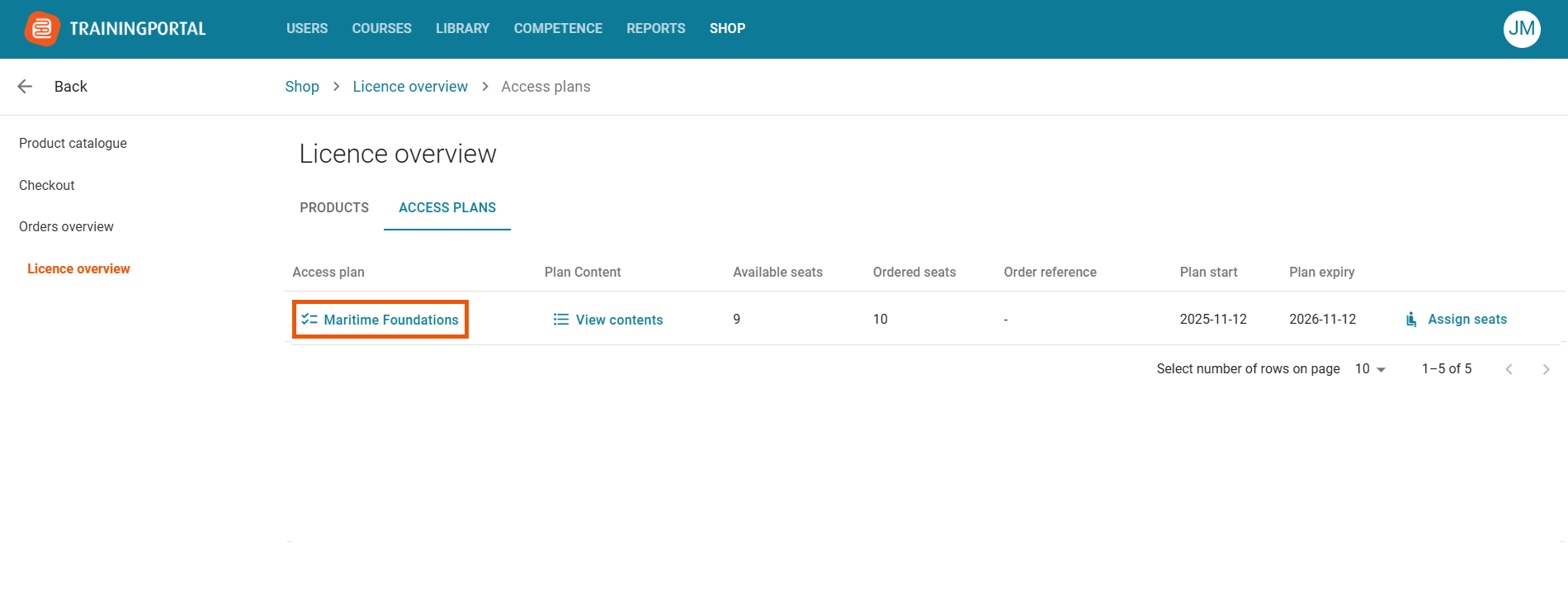
1. Go to Shop → License Overview.
2. Open the Access Plan tab.
3. Click on the access plan name.
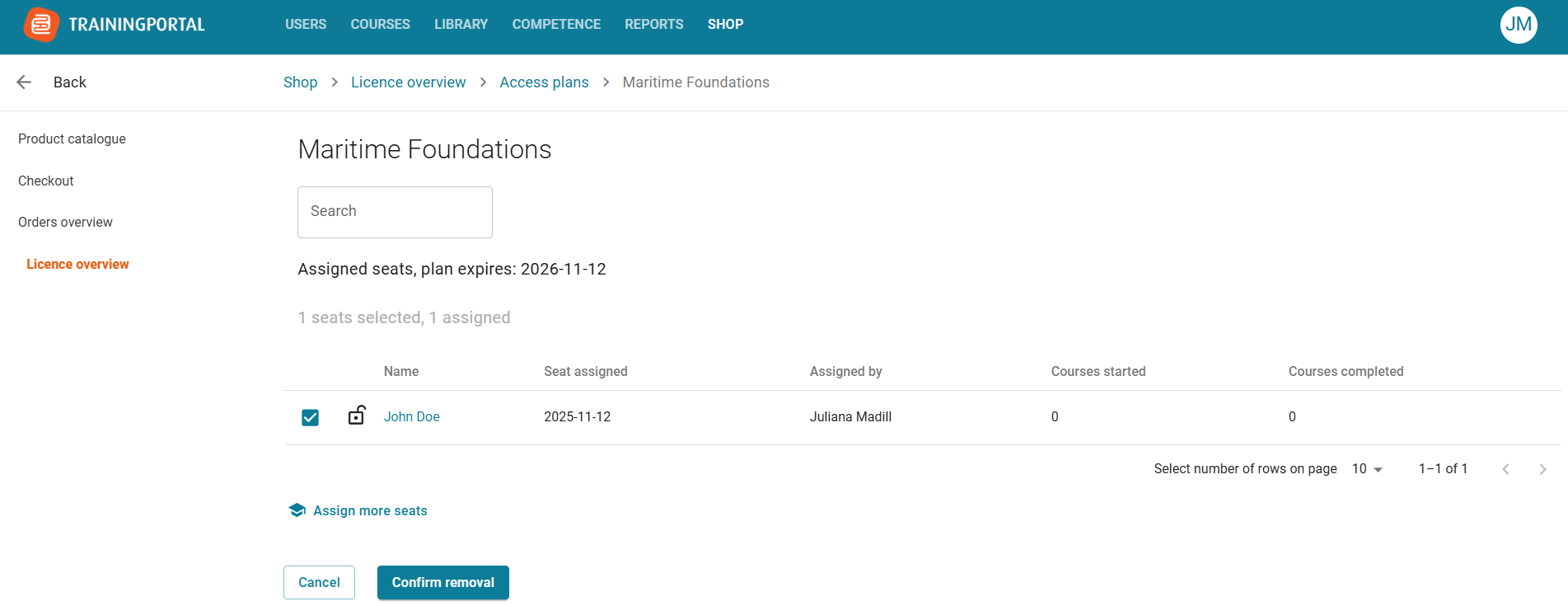
4. Select the user you wish to remove the seat from and confirm the removal.
Once a seat is removed:
-
It returns to your pool of available seats.
-
It can then be assigned to another user.
In general, each seat can be removed once every six months, unless the user never started a course.
