01. Assessor Overview
people found this article helpful
Assessor Main Page
The Assessments page will show a list of all candidates for which you are listed as an assessor.
By selecting a candidate, you will be brought into view of the candidate and a list of competencies assigned. This will show if any action is required to assess and detail the current status of the assessment. You can narrow down the search results by using the filters at the top of the page, including a feature to filter using the organisational structure of your company.
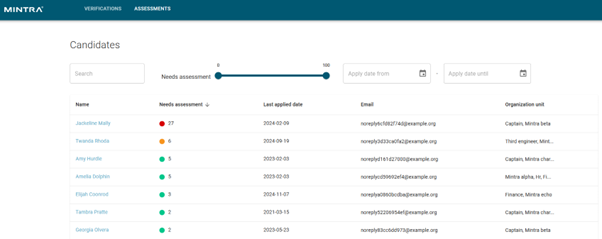
Accessing Assessments By Candidate
Within the view of a Candidate, you will gain access to review all of the assessments assigned to the profile that you have access to access. Here you will see details on if any action is required.
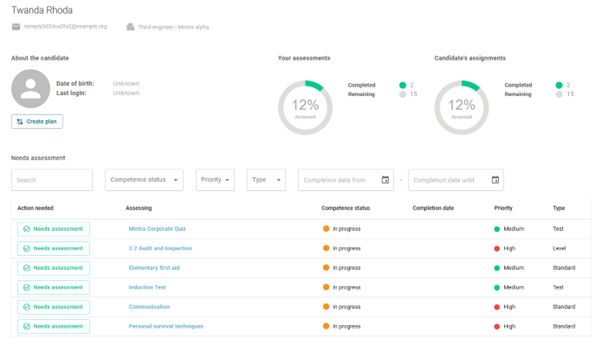
The initial list is sorted by items that require your immediate attention at the top. However, his can be filtered based on Competence Status, Priority, Competence Type or Completion Date.
By navigating to a competence awaiting assessment, this will open the assessment in side view. You can view a description of the competence along with the candidate's assessment.
How to Review an Assessment
Within the application for assessment, you have the ability to write a note and also Approve/Reject Evidence. You also have the ability to add additional evidence if required.
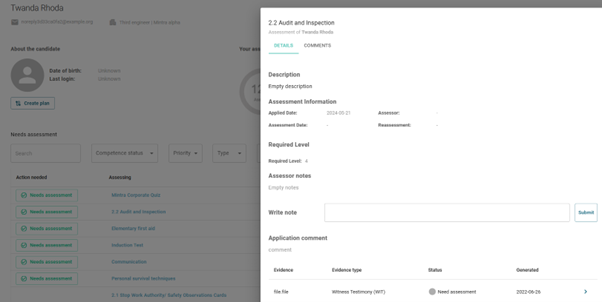
You may also wish to add your own assessment notes to support the assessment. This is done using the “assessor notes” section. You may also add or reply directly to a candidate's existing comments and change the visibility of comments to the candidate by using the “Hide” icon in the comments tab.
How to Create an Assessment Plan
In order to create an Assessment Plan for a specific candidate. Click “create plan” for the candidate you would like to set up the assessment plan for. You will be able to add a Title along with a Start/End date, Click “Save” to confirm and move to the next stage.
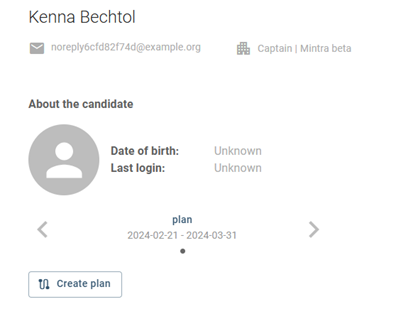
You will be taken to a screen showing the blank plan, this can now be populated with one or more competencies that should be covered by the plan. This can be expanded further to view the application and edit the suggested evidence.