02. Target Groups
people found this article helpful
What are target groups?
Target groups allow you to group users on your portal, based on different attributes.
These attributes can be based on Organisation Units, User Roles, various other user details like Nationality or date of birth, as well as any other custom attributes you may have set up on your portal.
Once this group is created, it can be used to automate course enrolments to those users.
How to create a target group?
- To create a target group, navigate to the users tab in the Admin UI, on the left hand menu you will see the option for Target Groups.
Within this section you can review any existing Target Groups, to create a new Target Group click the Create Target Group button at the top right.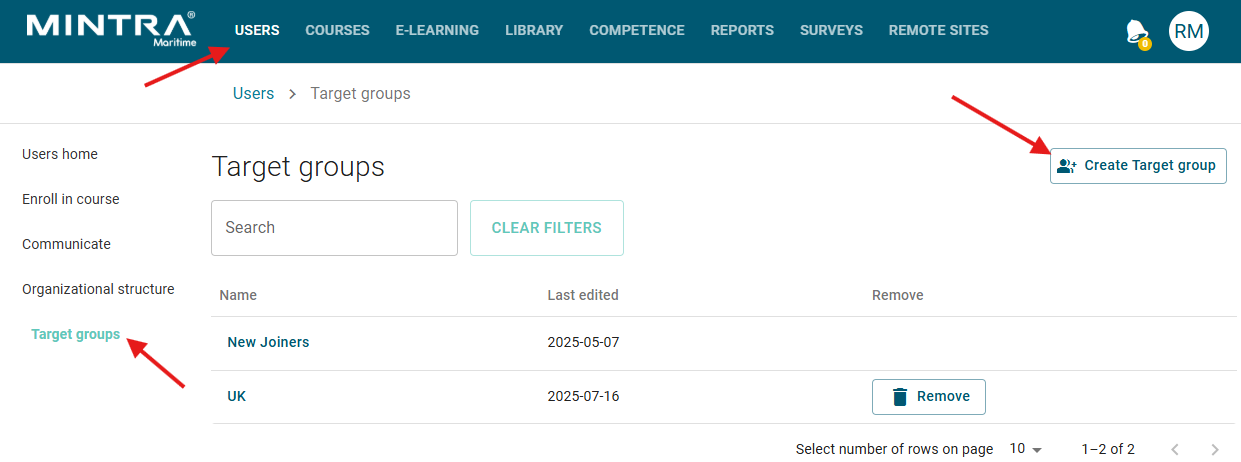
- On the create screen, enter the name for your new group. You can also provide a description here to detail the users that will be targeted.
- Now, you can start to use the available configuration options to target your desired users.
- The organisation unit drop down will allow you to select users in 1 or many organisation units.
- To exclude specific users in certain organisation units, use the Exceptions drop down.
- The role drop down will allow you to target users with a specific Trainingportal role, such as Manager or Portal Administrator etc.
- Should you wish to add more custom target rules, click the Add Extra Rule button, which will reveal additional options to filter on.
- The additional options allow you to select various user attributes such as name, date of birth, country, nationality or any other custom dynamic attributes you may have available on the portal.
- Selecting the desired attribute, you can then select your rules to match on, these will vary depending on the type of attribute selected.
- Some examples may be, if a date of birth is greater or less than a value, or if a department is a specific item in a list.
- Additional rules can be added as required and you can select if a rule should be included as an additional filter with AND or as an extra included option with OR.
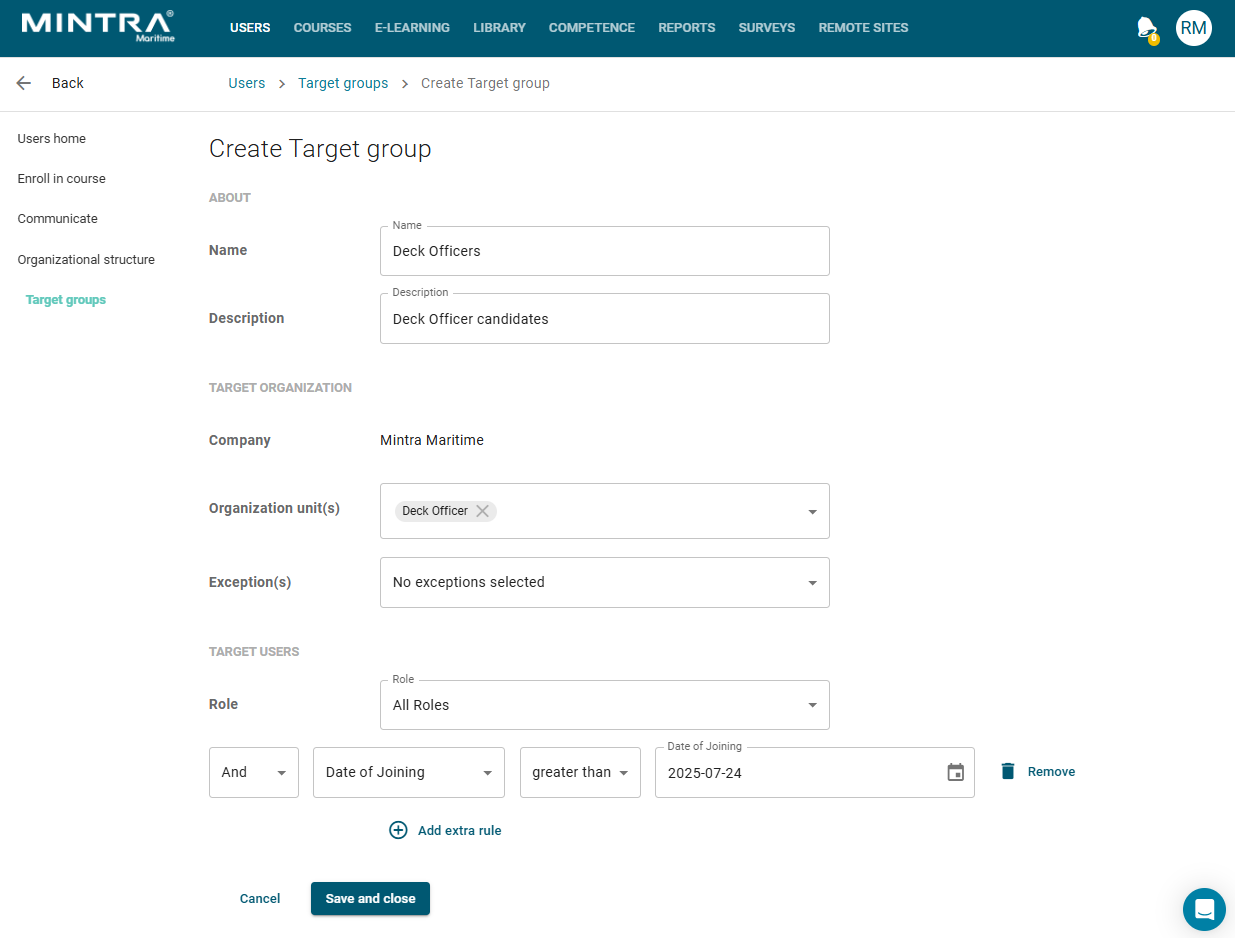
Click save and close once configured.